How to extract links from a webpage in Chrome
Copying URLs one by one is slow. This guide shows how to collect the links on the page you are viewing, clean the list and export it using Smart Link Grabber.
Steps
- Install Smart Link Grabber from the Chrome Web Store.
- Open a normal webpage and scroll until the content you need has loaded.
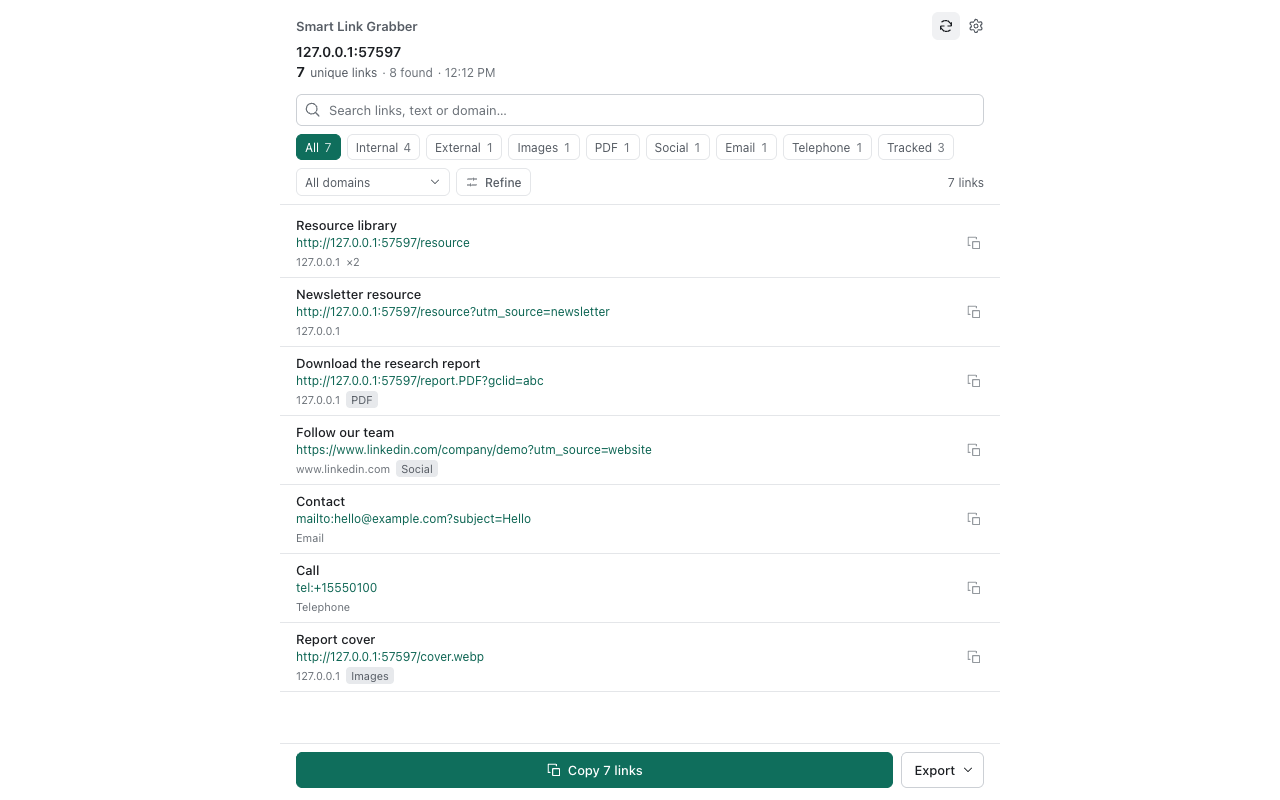
- Click the extension toolbar icon. The side panel opens and lists the links found.
- Pick a category (for example PDF or External) or search for text in the URL.
- Optionally filter by domain, remove duplicates, or remove tracking parameters.
- Copy the results, or download TXT, CSV or JSON.
Which format should I export?
- TXT: one URL per line, for pasting into notes or other tools.
- CSV: for spreadsheets.
- JSON: for scripts and structured data.
When links are missing
- Content that has not loaded yet (lazy loading, infinite scroll) is not collected. Scroll first, then click the icon again.
- Links inside embedded frames or shadow DOM are not scanned.
- Browser pages such as the Chrome Web Store or
chrome://pages cannot be analyzed. - Removing tracking parameters can break signed URLs; turn cleanup off to restore the original list.